How to Transfer Data From an Old Android Phone to a New One
Getting a new Android smartphone can be exciting. A better camera, improved battery life, additional storage, and faster performance can make everyday tasks easier.
However, switching phones also raises an important question: what happens to all your information?
Photographs, contacts, messages, applications, documents, and personal settings may have accumulated over several years.
Losing this information during a phone upgrade can be frustrating, especially when important memories or work-related files are involved.
Fortunately, Android provides built-in tools designed to help transfer information between compatible devices.
Learning how to transfer data to a new Android phone can help you make the transition more smoothly while reducing the risk of losing important files.
This guide explains how to use Android’s standard transfer process, restore Google backups, and move information to a Samsung Galaxy using Smart Switch.
You’ll also discover which information may not transfer automatically and what to check before resetting your old smartphone.
What Should You Do Before Switching Android Phones?
A successful transfer begins before you turn on your new smartphone.
Although Android transfer tools can automate many steps, preparing your old device helps reduce unexpected problems.
Start by confirming that you can unlock your old phone and access the Google Account associated with it.
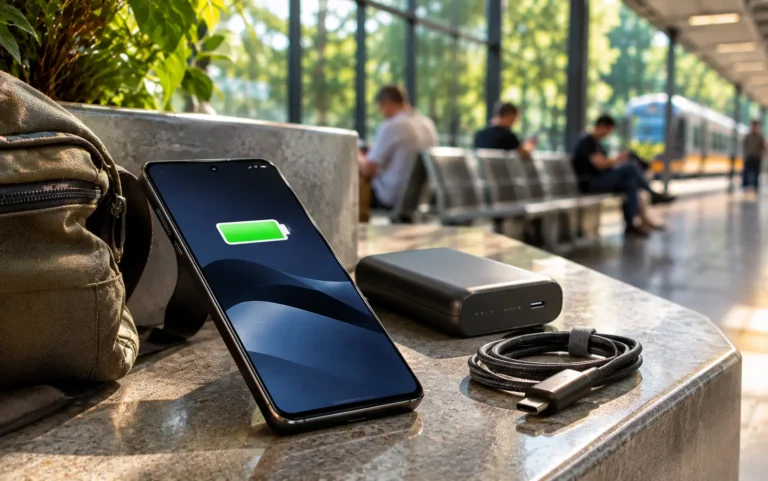
Then check that both devices have sufficient battery charge.
You should also verify that your new phone has enough available storage for the information you intend to transfer.
Android Phone Transfer Checklist
Before beginning, make sure you have:
- Your old Android smartphone, if available.
- Your new Android smartphone.
- Access to your Google Account.
- A reliable internet connection.
- A compatible USB cable, if using a wired transfer.
- Sufficient battery charge on both devices.
- Enough storage on the receiving phone.
- An accessible backup of important personal information.
Google recommends preparing both devices before starting the copying process.
If your old phone contains valuable photographs, documents, or messages, make an independent backup before changing anything.
Important: Do not erase your old phone until you’ve confirmed that the new device contains the information you need.
1. Transfer Data During Your New Android Phone’s Setup
One of the easiest ways to move information is through Android’s initial setup process.
When you turn on a new compatible Android phone, you may see an option to copy applications and data from an existing device.
Google’s official Android documentation explains that the setup process can transfer supported information using a wireless or cable connection.
Step-by-Step Instructions
- Turn on your new Android phone.
- Choose your preferred language and region.
- Connect to an available Wi-Fi network.
- When prompted, select the option to copy apps and data.
- Follow the instructions to connect your old Android phone.
- Confirm the connection between the devices.
- Sign in to your Google Account when requested.
- Select the information available for transfer.
- Start the copying process.
- Allow the transfer to complete before disconnecting the devices.
Depending on your devices, you may be offered a USB cable connection or a wireless transfer method.
The exact screens and wording can vary by manufacturer and Android version.
What Information May Be Transferred?
Supported transfers may include contacts, messages, call history, photographs, applications, and certain device settings.
However, not every application or setting can be copied automatically.
Some services require you to sign in again after the transfer.
2. Transfer Android Data Using a USB Cable
A wired connection is a practical option when both smartphones support a compatible transfer method.
It may be especially convenient when moving large collections of photographs or videos.
However, transfer speed depends on device hardware, cable capabilities, and the amount of data involved.
How to Transfer With a Cable
During your new phone’s initial setup, choose the option to copy data from another Android device.
Connect the two phones using a compatible USB cable and any required adapter.
Unlock the old device and approve the connection when prompted.
Select the available information you want to copy.
Keep both devices connected until the process has completed.
Why Use a Cable?
A cable avoids depending entirely on a wireless device-to-device connection.
It may also provide a stable transfer under appropriate conditions.
However, not every USB cable supports data transfer.
Some cables are designed primarily for charging.
If the devices cannot establish a connection, try a compatible data cable and follow your manufacturer’s troubleshooting instructions.
3. Transfer Data Wirelessly Between Android Phones
If you don’t have a compatible USB cable, wireless transfer may be available.
During the initial setup, Android may allow the devices to connect using supported wireless technology.
General Wireless Transfer Process
- Place both phones near each other.
- Turn on the new Android device.
- Follow the initial setup instructions.
- Select the available wireless copying option.
- Follow the pairing instructions on both devices.
- Approve the connection.
- Choose the information to transfer.
- Keep the devices nearby until the process finishes.
Google explains that supported wireless and cable transfer methods can move similar categories of data.
However, actual compatibility depends on the devices and setup process.
Avoid switching off either phone while copying information.
For large transfers, keeping the devices connected to power may be helpful.
4. Use Samsung Smart Switch to Transfer Data to a Galaxy Phone
If your new smartphone is a Samsung Galaxy, you may be able to use Samsung Smart Switch.
Smart Switch is Samsung’s official application for transferring supported information from a previous smartphone to a compatible Galaxy device.
It supports several transfer methods, including wireless connections, USB cables, and certain computer-based backup options.
Samsung explains that the application can transfer selected contacts, photographs, videos, messages, and other content.
How to Use Samsung Smart Switch
On your new Galaxy phone:
- Open Settings.
- Select Accounts and backup.
- Tap Smart Switch or Bring data from old device, depending on the software version.
- Choose Receive data.
- Select the type of old device.
- Choose Cable or Wireless.
- Follow the instructions to connect the phones.
- Review the available content categories.
- Select the information you want to transfer.
- Start the transfer and confirm completion.
The old phone may need the Smart Switch application installed.
Samsung Galaxy devices often include Smart Switch or provide access through Galaxy Store.
Does Smart Switch Work With Non-Samsung Android Phones?
Yes. Samsung supports transfers from many Android devices made by other manufacturers.
However, the receiving device must be a compatible Samsung Galaxy device.
Smart Switch is not a universal solution for moving information to every Android brand.
Also, certain Samsung-specific settings may transfer only when both devices are Galaxy models.
5. Restore Data From Your Google Account Backup
What happens if your old phone is lost, damaged, or no longer available?
You may still be able to recover supported information through a previous Google Account backup.
Android can back up certain device information to Google’s services when backup is enabled.
Depending on the device and settings, backups may include app data, call history, contacts, device settings, and SMS or MMS messages.
Photographs and videos are generally managed through Google Photos backup when enabled.
How to Check Backup on Your Old Phone
On many Android devices:
- Open Settings.
- Select Google.
- Tap All services, if displayed.
- Open Backup.
- Check whether backup is enabled.
- Review the available backup details.
- Select Back up now if appropriate.
Menu names and backup features may vary.
Make sure you are signed in to the Google Account you intend to use on the new phone.
How to Restore the Backup
During the new phone’s setup, sign in to the same Google Account.
When an available backup is offered, select the appropriate source and follow the instructions.
Restoration may continue after the initial setup screens are completed.
Some applications may need additional time to download.
Google also notes that restoring a backup from a higher Android version to a device running a lower version is not supported.
Important: Google backup does not guarantee that every app, document, or setting will be restored.
6. Transfer Contacts to Your New Android Phone
Contacts are among the most important pieces of information to preserve.
Fortunately, contacts saved to a Google Account may synchronize automatically when you sign in on another compatible Android device.
However, not every contact is necessarily stored in Google.
Some contacts may exist only on the device, a SIM card, or another account.
How to Check Your Contacts
Open the Contacts application on your old phone.
Review where contacts are stored or which accounts are being displayed.
If your contacts are synchronized with Google, confirm that the correct account is active.
After signing in on your new device, allow synchronization to complete.
Then open Contacts and confirm that the entries you need are present.
What About Contacts Stored on the SIM Card?
Some Android devices offer options to import contacts from a SIM card.
Availability depends on the device and software.
If your contacts are stored only on the old device, consider exporting them using an appropriate contact file format supported by your phone.
Keep any exported contact file secure because it may contain sensitive personal information.
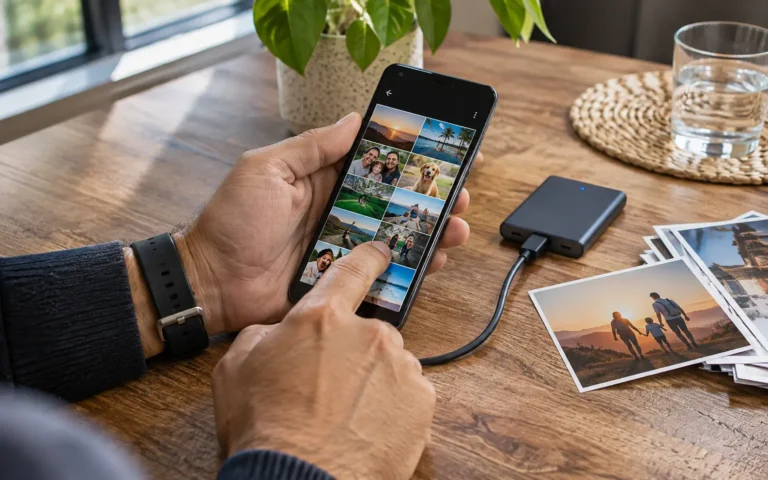
7. Move Photos and Videos Without Losing Memories
Photographs and videos are often the largest files transferred between smartphones.
There are several possible methods, including direct transfer, cloud backup, and copying files through a computer.
Using Google Photos
If backup was enabled on the old device, your photos may already be available in your Google Account.
On the new phone:
- Install or open Google Photos.
- Sign in with the correct Google Account.
- Allow the library to load.
- Check whether important photographs and videos appear.
- Verify that recent media was successfully backed up.
Remember that seeing a photograph in Google Photos does not necessarily mean a full-resolution local copy has been downloaded to the new phone.
Cloud content may require internet access.
Transferring Photos Directly
You can also select photographs and videos during Android’s device-to-device copying process.
On compatible Galaxy devices, Smart Switch supports transferring many personal media files.
Avoiding Duplicate Media
If photographs are already synchronized through Google Photos, transferring additional local copies may create unnecessary duplication.
Before deleting anything, establish which versions are stored locally and which exist only in cloud storage.
Never assume that a photo has been backed up merely because a cloud application is installed.
8. How to Transfer WhatsApp Chats to a New Android Phone
Messaging history deserves special attention.
Although Android setup tools may help transfer supported applications, chat histories do not always move automatically.
WhatsApp uses its own supported backup and migration procedures.
Google’s Android support documentation specifically advises users to enable the appropriate WhatsApp backup on the old device before attempting restoration.
What Should You Do?
Before switching phones, open WhatsApp on the old device.
Review the application’s official chat backup or transfer settings.
Check whether the latest backup is complete.
Make sure you can verify the telephone number associated with your account.
Then follow WhatsApp’s supported migration or restoration instructions on the new device.
Depending on the transfer method, WhatsApp may offer a direct chat transfer or backup restoration.
Important Warning
Do not delete WhatsApp from your old phone or reset that device before verifying your chats on the new one.
Some migration processes require WhatsApp to be in a particular state during setup.
Banking applications, authenticators, and other security-sensitive apps may have similar special requirements.
9. What Happens to Banking Apps and Authentication Codes?
Banking and security applications often require additional setup after switching smartphones.
This is intentional.
Financial institutions may restrict automatic transfers of sensitive credentials to reduce unauthorized access.
Similarly, authentication applications may store security information that requires a dedicated migration procedure.
Before Switching Phones
Review which financial apps you use.
Check your bank’s official instructions for registering a new device.
For authenticator applications, verify whether account synchronization or secure export is supported.
Keep recovery codes in a safe place when appropriate.
Do not assume that signing into your Google Account will automatically restore every banking session or authentication token.
What About Your SIM or eSIM?
Your mobile telephone number and cellular service require separate consideration.
A physical SIM card may be moved between compatible devices, subject to provider restrictions.
An eSIM may require activation or transfer through your mobile carrier.
Data migration tools do not universally transfer mobile service subscriptions.
Check your carrier’s instructions before deactivating your old device.
10. What Data May Not Transfer Automatically?
One of the most important aspects of switching Android phones is understanding the limitations.
Google and Samsung both explain that certain data categories may require separate action.
Android Data Transfer Comparison
| Data type | Usually transferable? | Important consideration |
|---|---|---|
| Google Contacts | Often | Must be saved or synced to the correct account |
| Photos and videos | Often | Local transfer or verified cloud backup |
| SMS and call history | Often | Depends on supported backup and transfer method |
| Installed applications | Many | Some must be downloaded again |
| Application data | Varies | Some apps do not support backup |
| WhatsApp chats | Conditional | Requires supported backup or migration |
| Banking apps | Often require reactivation | Follow institution’s security procedures |
| Authentication codes | Varies | May require special transfer or recovery |
| Downloaded music | Varies | Licensing restrictions may apply |
| Device settings | Partially | Manufacturer-specific settings may differ |
| eSIM | Carrier-dependent | May require separate activation |
| Passwords | Depends on password manager | Verify synchronization and recovery access |
This is a general compatibility overview, not a guarantee for every device.
For example, Samsung notes that content protected by certain digital rights management restrictions cannot be transferred through Smart Switch.
Some downloaded media may need to be downloaded again through its original service.
Google Android Transfer vs. Samsung Smart Switch
Both tools can help migrate personal information, but they serve different situations.
| Feature | Android setup transfer | Samsung Smart Switch |
|---|---|---|
| Main purpose | Move data to a compatible Android phone | Move data to a Samsung Galaxy |
| Receiving device | Supported Android devices | Compatible Galaxy devices |
| Wireless transfer | Supported on compatible devices | Supported |
| USB transfer | Supported on compatible devices | Supported |
| Google Account integration | Central to supported setup and backup | May complement account synchronization |
| Computer backup option | Depends on separate tools | Smart Switch supports PC/Mac workflows |
| App data compatibility | Varies | Varies by source and content |
| Manufacturer settings | Not always copied | More options between compatible Galaxy devices |
For a new Samsung Galaxy, Smart Switch is often an appropriate starting point.
For another Android manufacturer, follow the device’s standard setup procedure and any official migration tools it provides.
How Long Does Android Data Transfer Take?
The time required depends on the amount of data, transfer method, device performance, and connection quality.
Moving a few contacts may be quick, while transferring many gigabytes of photographs and videos can take considerably longer.
Wireless connections may also behave differently depending on interference and device compatibility.
Avoid relying on a fixed transfer time quoted for another smartphone.
Instead, allow the process to complete and check the displayed progress.
If a large transfer is interrupted, review what has already been copied before restarting.
Repeating a transfer without checking existing files may create duplicate content in some circumstances.
What if Android Data Transfer Is Not Working?
Transfer errors can occur for several reasons.
Your devices may have difficulty connecting, a USB cable may not support data transfer, or the receiving phone may lack sufficient storage.
Troubleshooting Steps
Check the connection: Confirm that both phones remain connected through the selected method.
Review the cable: If using USB, try a compatible data-capable cable.
Keep devices charged: Low battery levels can interrupt a transfer.
Check storage: Confirm that the new phone has sufficient available capacity.
Update software when appropriate: Outdated migration applications or device software may create compatibility problems.
Restart if recommended: Follow official troubleshooting procedures before attempting another transfer.
Check the manufacturer’s instructions: Different brands may have additional setup requirements.
If the new device has already completed initial setup, some data-copy options may no longer be available in the same form.
Google notes that restoring certain information may require returning to the supported setup flow, depending on the device and how long it has been configured.
Do not factory reset your new phone without confirming what information would be erased.
How to Verify That Your Transfer Was Successful
A transfer completion message is useful, but it does not prove that every important item arrived.
Before resetting your old device, inspect the new phone carefully.
Post-Transfer Checklist
- Open your Contacts application and check important entries.
- Review recent photographs and videos.
- Confirm that necessary documents are accessible.
- Check SMS messages and call history if relevant.
- Open important applications.
- Verify WhatsApp chats and recent conversations.
- Confirm that banking applications can be activated.
- Check access to authentication accounts.
- Test mobile calls and internet connectivity.
- Verify cloud backup settings on the new phone.
Also, confirm that your Google Account, password manager, and other important services are working correctly.
Keeping the old phone available during this transition provides an additional opportunity to recover information that was missed.
When Is It Safe to Reset Your Old Android Phone?
You may want to sell, donate, recycle, or give away your previous smartphone.
Before doing so, confirm that you have copied everything you want to preserve.
A factory reset removes local user information from the device and prepares it for reuse.
However, it is not a backup method.
Before Performing a Factory Reset
Verify the new phone’s data.
Confirm access to important accounts.
Make sure two-factor authentication and banking applications have been migrated or reactivated.
Check that your SIM or eSIM service is functioning on the intended device.
Review any files stored on removable media.
Follow your manufacturer’s official account removal and factory reset instructions.
Do not share the old device until the reset is complete and you have confirmed that personal information is no longer accessible through its normal interface.
For workplace-managed devices, consult the organization’s administrator before resetting or transferring them.
Important Considerations
Android data transfer methods vary by manufacturer, device model, operating system version, and account configuration.
Some data may be transferred directly, while other information is restored from cloud services.
Synchronization should not automatically be considered a complete independent backup.
Also, certain applications do not permit private data to be copied between devices for security or licensing reasons.
Banking credentials, authentication codes, protected media, and app-specific files deserve particular attention.
When moving to a Samsung Galaxy, use official Smart Switch tools and verify compatibility.
When moving to another Android manufacturer, use its supported migration method.
Avoid unfamiliar applications claiming they can transfer every type of private information without restrictions.
No data migration method guarantees that every file, message, or setting will be preserved.
Frequently Asked Questions (FAQ)
How do I transfer everything from my old Android phone to a new one?
Use the supported Android setup transfer or a manufacturer-specific tool such as Samsung Smart Switch. Verify important data separately because not everything transfers automatically.
Can I transfer Android data without a USB cable?
Yes. Many compatible Android phones support wireless transfer during setup, and some data can be restored through cloud backups.
Does Samsung Smart Switch work with other Android brands?
Yes. Smart Switch can receive supported information from many Android phones, but the receiving device must be a compatible Samsung Galaxy.
Will my apps transfer to my new Android phone?
Many supported applications can be copied or downloaded again, but locally stored app data may not always transfer.
Can I transfer photos without Google Photos?
Yes. You can use compatible direct transfer methods, Samsung Smart Switch, a computer, or other supported file transfer options.
Will WhatsApp messages transfer automatically?
Not necessarily. WhatsApp may require its own backup or dedicated chat migration procedure.
Can I restore my Android data if my old phone is broken?
Possibly. If a compatible Google backup or another accessible backup exists, you may be able to restore supported information.
Do I need the same Google Account on both phones?
Using the appropriate Google Account is important when restoring Google backups and synchronized information. Direct transfer methods may have additional requirements.
Can I transfer my banking apps to a new phone?
You may be able to reinstall the applications, but security-sensitive services often require separate account verification and device activation.
Should I factory reset my old phone immediately after transferring?
No. First verify your photographs, contacts, messages, authentication methods, important applications, and other personal information.
Final Thoughts
Learning how to transfer data from an old Android phone to a new one can make upgrading your smartphone much easier.
Android’s built-in setup tools, Google Account backups, and Samsung Smart Switch provide convenient ways to move many types of personal information.
However, not every file or application setting will transfer automatically.
The safest approach is to prepare both devices, create a verified backup, follow the official migration process, and check important data afterward.
Be especially careful with photographs, messaging histories, financial applications, and authentication credentials.
A successful phone upgrade is not simply about moving files. It is about making sure your important information remains accessible, secure, and properly organized on your new device.
Disclaimer
This article is intended for general educational and informational purposes only. It does not constitute professional data recovery, cybersecurity, or device repair advice.
Android transfer features, backup compatibility, Samsung Smart Switch functions, application migration rules, and operating system settings vary by manufacturer, model, region, and software version.
Certain information may not be transferred or restored. Factory resets and other device management procedures may result in irreversible data loss.
The instructions are based on official Google and Samsung documentation and have not been independently tested on every Android device.
This website is an independent educational publication and is not affiliated with or endorsed by Google, Android, Samsung, or any smartphone manufacturer.
Editorial review date: November 27, 2026.