10 Essential Android Apps to Make Your Phone More Useful
Your Android smartphone can do much more than make calls, send messages, and browse social media.
With the right applications, it can help you organize daily tasks, protect important information, manage storage, navigate unfamiliar places, and access documents from almost anywhere.
However, choosing useful applications is not always easy.
Google Play offers a wide variety of tools, and installing too many apps can create unnecessary notifications, consume storage, and complicate your digital routine.
The goal is not to install as many applications as possible. It is to choose software that solves genuine problems.
In this guide, we’ll explore 10 essential Android apps that can make your smartphone more practical, organized, and secure.
The selection includes established applications for Samsung Galaxy and other compatible Android devices, with an emphasis on usefulness, reliability, and everyday value.
What Makes an Android App Worth Installing?
A useful application should provide a clear benefit without creating unnecessary complications.
Before installing software, consider whether it solves a problem that your phone’s existing features cannot already handle.
For example, some Android smartphones include file managers, note-taking applications, and photo galleries.
Installing alternatives may provide additional features, but it can also create duplication.
What Should You Evaluate?
Consider the application’s main purpose, developer reputation, privacy practices, requested permissions, cost, and compatibility.
Regular software updates and accessible support documentation are also useful indicators.
However, a high rating or a familiar company name does not guarantee that an application will meet every user’s needs.
The following recommendations are based on published features and official documentation, not an independent performance benchmark.
1. Files by Google — Organize Files and Free Up Storage
Best for: Managing downloads, finding files, and reviewing storage.
Files by Google is a file management application developed by Google.
It helps users browse documents, photographs, videos, and other files stored on compatible Android devices.
The application also provides cleanup suggestions that can help identify unnecessary files.
Main Features
- Browse and search files.
- Review available storage.
- Find certain duplicate and unnecessary files.
- Manage downloaded documents.
- Share eligible files through Quick Share.
- Move selected files to supported cloud storage services.
Why Is It Useful?
Imagine your phone regularly displays a storage warning.
Instead of manually searching every folder, you can use Files by Google to review storage categories and identify files that may no longer be needed.
However, deleting files should always be done carefully.
Review photographs and documents before removing them, particularly when no independent backup exists.
Samsung Galaxy users should also compare this application with Samsung’s built-in My Files service, which may already meet their needs.
Official app: Files by Google on Google Play
2. Google Photos — Back Up and Organize Your Pictures
Best for: Photo organization, cloud backup, and accessing media across devices.
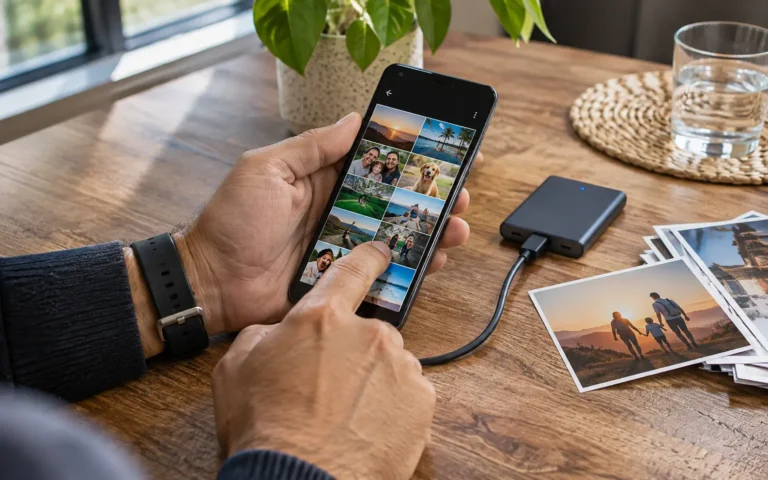
Google Photos helps users organize photographs and videos and, when backup is enabled, store copies in their Google Account.
This can be especially useful when changing smartphones or managing large photo collections.
Main Features
Google Photos offers photo and video organization, search features, albums, sharing options, editing tools, and cloud backup.
It also provides a feature designed to free up device storage by removing eligible local copies that have already been backed up.
Important Backup Precaution
Uploading photographs does not automatically mean you should delete them manually.
Google distinguishes between removing local copies through Free up space on this device and deleting items from the Google Photos library.
Ordinary deletion may also affect synchronized cloud copies.
Before removing important photographs, confirm that the backup is complete and accessible.
Google Account storage is shared across eligible Google services, and additional storage capacity may require a paid subscription.
Official app: Google Photos on Google Play
3. Google Drive — Access Documents Anywhere
Best for: File storage, document organization, and collaboration.
Google Drive is a cloud storage application that helps users save and access documents across compatible devices.
It can be useful for students, professionals, families, and anyone who needs access to important files while away from a computer.
Main Features
- Upload and organize files.
- Access documents from different devices.
- Share files and folders.
- Manage access permissions.
- Scan paper documents using a compatible camera.
- Make selected files available offline.
- Collaborate using supported document tools.
Practical Example
Imagine receiving an important PDF document while travelling.
You can save it to Google Drive, organize it in a folder, and access it later from another compatible device.
You may also share the document with someone who needs it.
However, file permissions should be reviewed carefully before sharing sensitive information.
Avoid using public links for confidential documents unless that level of access is appropriate.
Google Drive may be preinstalled on some Android devices.
Official app: Google Drive on Google Play
4. Google Keep — Manage Notes and Everyday Tasks
Best for: Quick notes, shopping lists, and reminders.
Google Keep is a note-taking application designed to capture information quickly.
It supports text notes, lists, images, voice memos, and shared notes.
How Can Google Keep Help?
You might create a grocery shopping list and share it with a family member.
You can also record ideas, save information for later, or organize small tasks.
Notes can synchronize across supported devices when the appropriate Google Account is used.
Useful Features
- Create notes and checklists.
- Add photographs to notes.
- Record voice notes.
- Apply labels and colours for organization.
- Share notes with other users.
- Access notes through supported devices and the web.
Google Keep is particularly useful for simple information management.
However, users who need extensive project management features may prefer a more specialized application.
Avoid treating ordinary notes as a secure vault for passwords or banking credentials.
Official app: Google Keep on Google Play
5. Google Maps — Navigate and Explore Places
Best for: Navigation, location information, and travel planning.
Google Maps is one of the most familiar navigation applications available for Android.
It helps users find places, explore routes, and access geographic information.
Depending on the location and available data, the application may provide driving, walking, cycling, and public transportation directions.
Why Is It Useful?
Google Maps can help users plan journeys, locate businesses, and compare available routes.
It also supports downloading selected map areas for offline navigation.
How to Download an Offline Map
- Open Google Maps.
- Tap your profile picture.
- Select Offline maps.
- Choose Select your own map.
- Adjust the area.
- Tap Download.
Google explains that offline maps are not available in every country or region.
Also, offline navigation has limitations.
For example, real-time traffic information, alternative driving routes, and certain transportation directions may be unavailable without connectivity.
Download maps before travelling to areas with unreliable internet access.
Official service: Google Maps
6. Google Translate — Understand Different Languages
Best for: Everyday translation, travel, and language assistance.
Google Translate helps users translate text and, for supported languages and features, speech and images.
The application can be especially useful when visiting another country or reading information in an unfamiliar language.
Main Features
Depending on the language and device, Google Translate offers:
- Typed text translation.
- Camera-based translation.
- Voice translation.
- Conversation features.
- Translation from imported images.
- Offline language downloads.
Practical Example
Imagine travelling internationally and encountering a restaurant menu written in a language you do not understand.
A supported camera translation feature may help explain the text.
However, automatic translations can contain mistakes.
For legal documents, medical instructions, financial agreements, or other high-stakes information, consider using a qualified professional translator.
Offline language availability also varies.
Official app: Google Translate on Google Play
7. Bitwarden — Manage Passwords More Securely
Best for: Creating, storing, and organizing account passwords.
Using the same password across multiple websites can increase security risks.
If a password is exposed through one service, criminals may attempt to use it to access other accounts.
A password manager can help reduce this risk by making unique passwords easier to use.
Bitwarden is an established password management application that provides an encrypted password vault and synchronization features.
What Can It Do?
Bitwarden helps users create strong passwords, store login credentials, and access saved information across supported devices.
It also offers autofill functionality and other account management features.
Important Security Considerations
A password manager should be protected by strong account credentials and supported multifactor authentication.
You should also understand the account recovery process before relying on it for important information.
Some additional features may require a paid subscription.
Bitwarden is one option among several established password managers.
Android also provides integrated password management options, so compare the features before switching.
Official app: Bitwarden on Google Play
8. Mozilla Firefox — Browse With Additional Privacy Controls
Best for: Web browsing and managing tracking preferences.
Mozilla Firefox is an alternative web browser available for Android.
One of its notable features is Enhanced Tracking Protection.
According to Mozilla’s documentation, this system is designed to block certain known trackers used across websites.
Available Privacy Controls
Firefox for Android includes configurable tracking protection settings, private browsing features, and other browser management options.
Users can choose different protection levels depending on their preferences.
However, stronger tracking restrictions may interfere with certain websites.
Is Private Browsing Completely Private?
No.
Private browsing can reduce the amount of local browsing history retained during a session, but it does not make a user anonymous to websites, internet service providers, or every network operator.
Likewise, tracker blocking does not guarantee protection from malware or phishing.
Firefox is worth considering if you want more control over certain browsing privacy settings.
Official website: Mozilla Firefox for Android
9. VLC for Android — Play Video and Audio Files
Best for: Local multimedia playback and compatibility with different formats.
VLC is a multimedia player known for supporting a broad range of audio and video formats.
It is particularly useful when your phone’s default media player cannot open a file correctly.
Main Features
VLC supports many common multimedia formats, audio playback, subtitles, local files, and supported network streams.
Its official Google Play description identifies it as free and open-source software.
Practical Example
Imagine receiving a video file in a format that your default player does not recognize.
Rather than converting it immediately, you can check whether VLC supports the file.
It may also be useful for playing locally stored media during travel.
However, not every file or codec is guaranteed to work perfectly.
Also, downloading copyrighted material without authorization can violate applicable laws.
Use the application with files and media you are entitled to access.
Official app: VLC for Android on Google Play
10. Google Find Hub — Locate and Secure a Lost Android Device
Best for: Finding compatible lost devices and protecting information.
Losing a smartphone can be especially concerning when it contains photographs, account access, and personal information.
Google Find Hub provides tools that can help locate, secure, or erase eligible Android devices.
The feature was previously known as Find My Device.
Main Features
Depending on the device configuration, Find Hub may allow you to:
- Locate a compatible Android device.
- Make the device ring.
- Secure a lost smartphone.
- Remotely erase eligible device data.
- Locate certain compatible accessories.
- Use supported offline finding features.
Important Preparation Steps
Google recommends confirming that the device is signed in to a Google Account, has the relevant finding settings enabled, and is properly configured before it is lost.
Some features require network connectivity, while offline finding capabilities depend on device support and settings.
You can review the official service at android.com/find.
Important Warning
Remote erasure can permanently remove information from your phone.
Use this feature only after understanding the consequences.
Find Hub does not guarantee that every lost or stolen device can be recovered.
Comparison: 10 Essential Android Apps
The following table provides a quick overview of their main uses.
| Application | Main purpose | Key consideration |
|---|---|---|
| Files by Google | Storage and file management | Review files before deleting |
| Google Photos | Media organization and backup | Cloud storage limits |
| Google Drive | Documents and cloud files | Sharing permissions |
| Google Keep | Notes and simple lists | Not a password vault |
| Google Maps | Navigation | Offline limitations |
| Google Translate | Language assistance | Translation accuracy |
| Bitwarden | Password management | Account security |
| Mozilla Firefox | Web browsing | Tracking protection limitations |
| VLC for Android | Multimedia playback | Format compatibility |
| Google Find Hub | Lost-device protection | Requires advance setup |
This list is editorially selected to cover different everyday needs.
It is not a ranking based on laboratory testing or comparative performance scores.
Are These Android Apps Free?
Many of the applications listed offer free core functionality.
However, free access does not always mean that every feature, storage allowance, or related service is unlimited.
For example, Google Drive and Google Photos use Google Account storage, and additional capacity may require a subscription.
Bitwarden offers free password management features alongside optional paid plans.
Other applications may have features that vary by device, region, or account type.
Before installing an application, review its current Google Play listing and any subscription information.
Avoid assuming that all features advertised internationally are available in your country.
How to Install Android Apps Safely
Installing software from an unfamiliar source can introduce security and privacy risks.
Google recommends using Play Protect to help identify potentially harmful applications.
Before Installing Any App
- Verify the developer’s identity.
- Read the application description.
- Check compatibility with your Android version.
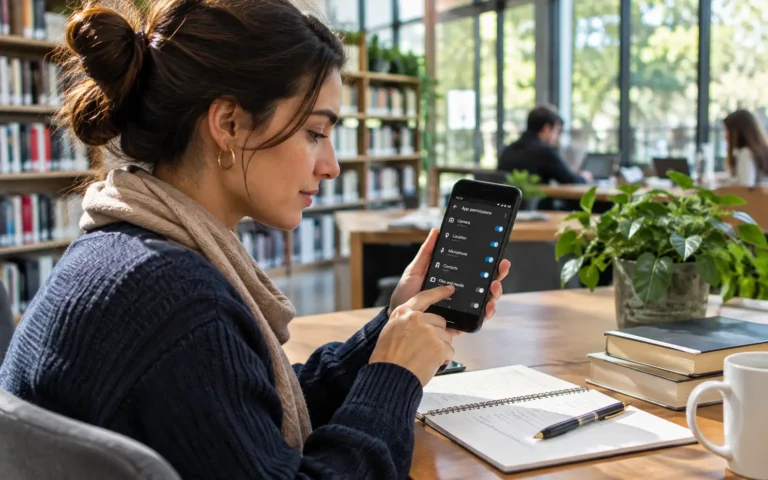
- Review requested permissions.
- Examine the privacy and data safety information.
- Check whether purchases or subscriptions are involved.
- Install through an appropriate trusted source.
- Keep the application updated.
Remember that a listing on Google Play does not guarantee that an application is entirely risk-free.
Review permissions periodically and remove software you no longer need.
How Many Apps Should You Have on Your Android Phone?
There is no universal number of applications that every Android user should install.
The right selection depends on your activities, available storage, device capabilities, and personal preferences.
A person who frequently travels may benefit from navigation and translation tools.
Someone who works with documents may prioritize cloud storage and note-taking.
A user concerned about account security may focus on password management and lost-device protection.
A Practical Way to Choose
Start by identifying three tasks you want your phone to handle better.
Choose one suitable application for each task.
Use the applications for a reasonable period and assess whether they genuinely help.
Remove unnecessary duplicates rather than installing several similar tools without a clear purpose.
Important Considerations
Applications change over time.
Features, subscription prices, device compatibility, privacy policies, and availability may differ between countries.
Some Android phones already include applications that perform similar functions.
For example, Samsung Galaxy users may already have Samsung Notes, My Files, and other manufacturer-specific tools installed.
You do not need to replace them simply because an alternative appears in this article.
Also, be cautious about granting sensitive permissions to applications that do not need them.
Security, convenience, and privacy should be considered together.
Frequently Asked Questions (FAQ)
What are the most useful Android apps?
Useful options include file managers, note-taking tools, cloud storage applications, navigation services, password managers, and media players. The best selection depends on your needs.
Are these Android apps available worldwide?
Many are widely distributed, but features, language support, and service availability can vary by country and device.
Can I install these apps on a Samsung Galaxy phone?
Most are compatible with supported Samsung Galaxy devices. Check individual Google Play listings and Android version requirements before installing.
Do I need a cleaner app on Android?
Not necessarily. Android devices often include built-in storage management tools. Files by Google provides additional file organization and cleanup features.
Is Google Photos completely free?
It offers features within available Google Account storage. Additional storage may require a paid plan.
Is Bitwarden safer than saving passwords in notes?
A reputable password manager provides specialized protections such as encrypted credential storage, making it generally more appropriate for passwords than ordinary unprotected notes.
Can Google Maps work without internet access?
Certain navigation functions work with downloaded maps in supported areas. However, offline navigation does not include every online feature.
Does Firefox make Android completely private?
No. Its privacy controls can reduce certain tracking activities, but they do not guarantee anonymity or complete protection from online threats.
Can Find Hub recover a stolen phone?
It may help locate or secure an eligible device, but recovery is not guaranteed. Follow local safety guidance and avoid confronting suspected thieves.
Final Thoughts
Choosing the right Android applications can make your smartphone more useful for everyday activities.
File management tools can help organize storage, cloud services can preserve important documents, and productivity applications can simplify daily tasks.
Security and privacy tools may also provide useful protections when configured correctly.
However, installing more apps does not automatically create a better smartphone experience.
Focus on software that addresses your actual needs, comes from reputable developers, and offers features you understand.
The best Android apps are not necessarily the most popular. They are the ones that make your daily activities easier, safer, and more organized.
Disclaimer
This article is provided for general educational and informational purposes only. It does not constitute personalized technical, cybersecurity, financial, or legal advice.
Application features, pricing, availability, compatibility, privacy conditions, and service limitations may vary by country, device, and software version.
The applications listed are editorial examples selected for their documented functions. No independent hands-on comparison, sponsored placement, or commercial partnership is claimed.
This website is an independent educational publication and is not affiliated with or endorsed by Google, Samsung, Mozilla, Bitwarden, or VideoLAN.
Editorial review date: November 14, 2026.
Sources and Further Reading
- Files by Google — Official Play Store Listing
- Google Photos — Official Play Store Listing
- Google Drive — Official Play Store Listing
- Google Keep — Official Play Store Listing
- Google Maps — Offline Navigation Help
- Google Translate — Official Play Store Listing
- Bitwarden — Official Play Store Listing
- Mozilla — Enhanced Tracking Protection for Android
- VLC — Official Play Store Listing
- Google — Find, Secure or Erase a Lost Android Device