How to Improve Android Battery Life: 10 Practical Tips
Few things are more frustrating than watching your smartphone battery drain when you still have several hours left in your day.
You might leave home with a fully charged Android phone, only to discover that the battery percentage has dropped considerably after browsing, using navigation, taking photographs, or checking messages.
Although batteries naturally lose some capacity as they age, rapid battery drain does not always mean your smartphone needs replacing.
Sometimes, everyday settings and application activity contribute to unnecessary power consumption.
Learning how to improve Android battery life can help you manage your phone’s energy use, identify unexpected battery drain, and make your device more reliable throughout the day.
In this guide, you’ll discover ten practical ways to extend battery life on Android smartphones, including Samsung Galaxy devices, without making complicated system modifications.
Why Is Your Android Battery Draining So Fast?
Smartphone battery consumption depends on several factors.
Your screen, processor, mobile connection, applications, and background activities all require energy.
Some tasks consume more power than others.
For example, recording high-resolution video, playing demanding games, or using navigation for extended periods can increase battery consumption.
The strength of your mobile network connection can also influence energy use.
When signal quality is poor, your device may work harder to maintain a connection.
According to Google’s official Android guidance, screen settings, applications, software updates, and battery-saving features can all affect how long a charge lasts.
However, battery life varies substantially between smartphones.
A device with an aging battery may behave differently from a new phone, even when both use similar settings.
1. Reduce Screen Brightness and Adjust Display Settings
Your smartphone’s display is a major source of power consumption.
Higher brightness levels generally require more energy, particularly when using the screen for long periods.
One of the simplest ways to reduce battery consumption is to adjust brightness according to your surroundings.
How to Adjust Android Screen Brightness
On many Android smartphones:
- Open Settings.
- Select Display.
- Find the brightness control.
- Reduce the brightness to a comfortable level.
- Enable adaptive brightness if available and appropriate.
Adaptive brightness automatically adjusts screen illumination based on lighting conditions and usage patterns.
Samsung Galaxy phones also provide adaptive brightness controls on supported models.
Reduce Screen Timeout
Screen timeout determines how long your display remains active after you stop interacting with it.
Consider reducing the timeout to 30 seconds or one minute if that fits your needs.
You can typically find this option under:
Settings → Display → Screen timeout
The exact menu may vary.
A shorter timeout can prevent the display from remaining active unnecessarily.
However, don’t reduce brightness so aggressively that you cannot comfortably read important information.
2. Enable Battery Saver When You Need It
Android includes battery-saving features designed to reduce power consumption.
Depending on the manufacturer, these may be called Battery Saver, Power Saving, or something similar.
When enabled, these features can restrict certain background activities, reduce processing demands, or change display behaviour.
How to Enable Battery Saver on Android
On many devices:
- Open Settings.
- Select Battery.
- Tap Battery Saver.
- Enable the feature.
- Review any available scheduling options.
On supported Samsung Galaxy phones, you can generally access:
Settings → Battery → Power saving
Some older Samsung models place this option under Device care.
What Changes When Battery Saver Is Enabled?
Depending on the device, some applications may update less frequently.
Background synchronization, location activity, animations, and other features may be restricted.
You may also notice reduced performance during demanding tasks.
Battery Saver is particularly useful when you need your remaining charge to last longer.
However, it can delay certain notifications or background processes, so consider your communication and work requirements.
3. Identify Applications Using Too Much Battery
Some applications consume more energy than others.
Video streaming, gaming, navigation, and video calls can require significant processing power and network activity.
However, even an application you rarely open may consume energy if it is experiencing a problem or performing excessive background tasks.
How to Check Battery Usage
On many Android devices:
- Open Settings.
- Select Battery.
- Look for Battery usage.
- Review which applications have consumed the most power.
- Investigate applications showing unusual activity.
Samsung Galaxy devices also provide battery usage information through their battery settings.
What Should You Look For?
Consider whether the application’s energy consumption matches how you use it.
For example, a navigation application may consume substantial power during a long journey.
That does not necessarily indicate a problem.
However, an application you have not intentionally used may deserve investigation if it repeatedly appears among the highest battery consumers.
Try updating the application, reviewing its background settings, or restarting your phone.
Avoid immediately deleting important applications without understanding why they are consuming energy.
4. Keep Android and Your Applications Updated
Software updates can include security fixes, compatibility improvements, and corrections for problems affecting battery consumption.
A poorly functioning application may use more energy than expected.
Updating it could resolve the issue.
How to Check for Android Updates
On many Android smartphones:
- Open Settings.
- Select System.
- Open Software update.
- Check for available updates.
- Follow the manufacturer’s installation instructions.
On Samsung Galaxy devices, the option is usually located under:
Settings → Software update
Update Applications Through Google Play
- Open Google Play Store.
- Tap your profile picture.
- Select Manage apps & device.
- Review available application updates.
- Update the relevant applications.
Keep in mind that battery behaviour can temporarily change after a major system update.
Your device may need to complete background tasks and optimize applications.
Google notes that certain devices can require an adjustment period after setup or major changes.
Updates are important, but they do not guarantee that battery life will improve in every case.
5. Review Location Services and GPS Usage
Location services can be useful for navigation, weather, delivery applications, and other features.
However, some applications may request location information more frequently than necessary.
Reviewing permissions can help you limit unnecessary activity.
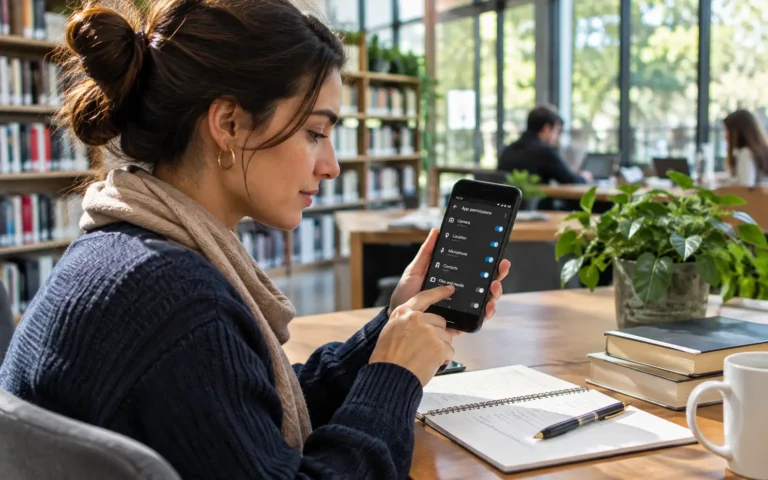
How to Manage Location Permissions
On many Android devices:
- Open Settings.
- Select Location.
- Open App location permissions.
- Review the applications listed.
- Adjust permissions according to your needs.
For example, a shopping application may only need approximate location access while you are using it.
A navigation application may require more frequent or precise location information.
Android allows supported applications to receive different levels of location permission.
Should You Turn Off GPS Completely?
Not necessarily.
Disabling location services can interfere with navigation, device-finding features, emergency services, and other useful functions.
A better approach is to limit unnecessary access while preserving important functionality.
The amount of battery saved depends on how frequently applications actually use location services.
6. Use Wi-Fi and Mobile Connections Efficiently
Wireless connectivity also affects battery consumption.
Your smartphone uses energy to maintain Wi-Fi, Bluetooth, and mobile network connections.
When mobile signal quality is weak, the device may use additional power attempting to communicate with the network.
Practical Connectivity Tips
Use a reliable Wi-Fi connection when it provides better connectivity than a weak mobile signal.
Avoid leaving your phone searching for unavailable networks unnecessarily.
If you are travelling through an area with no cellular coverage and do not need connectivity, Airplane Mode may help preserve battery.
However, enabling Airplane Mode disables cellular communications until you restore them.
Do not rely on it when you need to receive calls, messages, or other important notifications.
Does 5G Consume More Battery Than 4G?
Battery consumption can vary according to network quality, device hardware, modem efficiency, and usage.
Certain devices may use more energy under particular 5G conditions, but it is not accurate to claim that 5G always drains batteries faster.
If your phone offers network mode controls, compare performance and battery use under your normal conditions.
Do not sacrifice essential connectivity solely to achieve a small or uncertain battery saving.
7. Enable Adaptive Battery and Background Optimization
Modern Android devices use software features to manage application activity.
On supported devices, Adaptive Battery learns from usage patterns and helps limit background activity for applications you use less frequently.
Google recommends keeping Adaptive Battery and battery optimization enabled on supported Pixel devices.
Other Android manufacturers provide similar features with different names.
How to Find Battery Optimization Settings
Depending on your smartphone:
- Open Settings.
- Select Battery.
- Look for Adaptive Battery, Background usage limits, or related settings.
- Review available options.
- Follow your manufacturer’s recommendations.
Samsung Galaxy users may find background usage controls under battery settings.
Important Precaution
Restricting background activity can affect certain applications.
Messaging notifications, fitness tracking, cloud backups, and other services may not function as expected if background activity is excessively limited.
Avoid applying aggressive restrictions to critical applications without understanding the consequences.
Android is designed to manage many background processes automatically.
You do not need to constantly force-close every application to maintain battery life.
8. Avoid Excessive Heat
Temperature can influence both immediate battery performance and long-term battery health.
Smartphones generate heat during charging and demanding activities.
Gaming, video recording, navigation, and prolonged direct sunlight can increase device temperature.
When a phone becomes too hot, its system may reduce performance or charging speed to protect the hardware.
How to Protect Your Phone
Avoid leaving your device in direct sunlight for long periods.
Do not leave it inside a hot parked vehicle.
Use charging accessories that meet the manufacturer’s specifications.
Avoid covering the device with materials that trap heat during charging.
If your phone becomes unusually hot, stop demanding activities and allow it to cool naturally.
Never place a smartphone in a refrigerator or freezer to cool it.
Extreme temperature changes can cause condensation and potentially damage internal components.
Important: If your battery appears swollen, the device is physically damaged, or unusual heat persists, stop using or charging it and seek qualified technical assistance.
9. Use Battery Protection Features When Charging
Battery life and battery lifespan are related but different.
Battery life refers to how long your phone runs between charges.
Battery lifespan refers to how long the battery maintains useful capacity over months and years.
Rechargeable lithium-ion batteries gradually lose capacity through aging and use.
Charging habits and temperature can influence that process.
Samsung Galaxy Battery Protection
Supported Galaxy devices offer Battery protection features that can limit or manage charging to help preserve long-term battery health.
Depending on the One UI version, options may include charging limits or adaptive protection modes.
Check:
Settings → Battery → Battery protection
The precise options vary by model and software version.
Do You Need to Charge to 100%?
Not always.
If you need the maximum available charge for a long day, charging fully may be appropriate.
If your device supports battery protection and you do not need its full capacity every day, a charging limit may help reduce certain long-term battery stresses.
However, charging to a lower maximum means less energy is available immediately.
Choose the setting that balances your daily requirements with long-term battery care.
There is no need to deliberately drain modern lithium-ion batteries to zero before every recharge.
10. Reduce Unnecessary Display and Connectivity Features
Small adjustments can help reduce energy use when several features are active.
For example, some smartphones offer Always On Display, high refresh rate options, animated wallpapers, or other visual enhancements.
These features can improve convenience and appearance, but certain configurations may increase battery consumption.
Features Worth Reviewing
Always On Display: Consider reducing its active schedule or disabling it when you don’t need information visible on the locked screen.
Display refresh rate: Some phones allow lower refresh rates, which may reduce display-related power use in certain situations.
Live wallpapers: A static wallpaper may use fewer resources than certain animated backgrounds.
Wireless hotspot: Disable tethering when you are no longer sharing your internet connection.
Unused Bluetooth accessories: Disconnect accessories that are no longer needed, particularly if they repeatedly reconnect or maintain active functions.
The effect of each change varies.
Bluetooth being enabled does not necessarily create substantial battery drain on its own.
Prioritize settings that your battery usage information suggests are relevant rather than disabling every convenient feature indiscriminately.
Android Battery-Saving Settings Compared
| Setting | Potential benefit | Possible trade-off |
|---|---|---|
| Lower screen brightness | Reduces display power use | Lower visibility |
| Shorter screen timeout | Less unnecessary screen activity | More frequent unlocking |
| Battery Saver | Restricts some energy-intensive activity | Reduced performance or delayed updates |
| App background limits | Reduces selected app activity | Delayed notifications |
| Adaptive Battery | Optimizes app behaviour over time | Some background restrictions |
| Location permission controls | Limits unnecessary location access | Some location features may be affected |
| Always On Display off | Reduces display activity | Less glanceable information |
| Battery protection | May support long-term battery health | Lower immediate charge capacity |
These are qualitative comparisons based on official manufacturer descriptions, not independently measured battery benchmarks.
The effectiveness of each setting depends on your phone and how you use it.
How Much Battery Life Can You Actually Save?
There is no universal percentage improvement guaranteed by these adjustments.
Battery performance depends on device capacity, battery age, network conditions, temperature, software, and screen usage.
A practical way to measure improvement is to compare similar days before and after changing settings.
Example: A Simple Battery Usage Test
Imagine observing your battery over two separate days.
| Measurement | Day 1 | Day 2 |
|---|---|---|
| Starting battery | 100% | 100% |
| Remaining after 6 hours | 42% | 55% |
| Battery consumed | 58 percentage points | 45 percentage points |
| Difference | — | 13 percentage points |
This is a hypothetical simulation, not a real Android battery test.
In this example, the phone consumed 13 percentage points less battery during the second observation.
However, the comparison would only be meaningful if activities, signal conditions, temperature, and other factors were reasonably similar.
For a more useful assessment, compare multiple days rather than relying on one result.
Why Is My Android Battery Draining Overnight?
Unexpected overnight battery drain may be related to background synchronization, software issues, weak mobile signal, or other device activity.
Start by reviewing battery usage information.
Check whether a particular application or service consumed an unusually large amount of power.
Consider whether the phone was downloading updates, backing up files, or performing other tasks.
A newly configured device may also be synchronizing information for the first time.
If overnight drain persists, restart the phone and review recent application changes.
Avoid assuming that rapid drain always indicates malware or a defective battery.
If the phone also becomes unusually hot, shuts down unexpectedly, or shows battery warnings, contact the manufacturer.
How to Know When Your Android Battery Needs Replacing
Battery-saving settings cannot restore capacity that has been lost through physical battery aging.
Possible signs of battery deterioration include significantly reduced runtime, unexpected shutdowns, or recurring charging problems.
However, these symptoms can also have other causes.
Samsung Galaxy users may be able to run battery diagnostics through the Samsung Members application on supported models.
Some other manufacturers provide battery health information or diagnostic tools.
If you suspect a hardware problem, contact the device manufacturer or a qualified repair service.
Replacing a battery may be more economical than purchasing a new smartphone, depending on the device, repair cost, and remaining software support.
Never attempt to open or repair a damaged lithium-ion battery without the appropriate expertise.
A Simple 7-Day Android Battery Improvement Plan
Instead of changing every setting at once, consider evaluating improvements gradually.
| Day | Action |
|---|---|
| Day 1 | Review battery usage and record current performance |
| Day 2 | Adjust screen brightness and timeout |
| Day 3 | Review applications using excessive power |
| Day 4 | Check Android and application updates |
| Day 5 | Review location and background permissions |
| Day 6 | Test Battery Saver during appropriate activities |
| Day 7 | Compare battery consumption and keep useful adjustments |
This is an illustrative self-assessment process, not a standardized battery benchmark.
Changing one major setting at a time can help you understand which adjustments make a practical difference.
Important Considerations
Android battery management settings vary across manufacturers, models, and operating system versions.
Samsung Galaxy, Google Pixel, and other Android smartphones may use different menu names and optimization technologies.
Not every phone includes Adaptive Battery, Always On Display, battery charging limits, or advanced diagnostic features.
Battery-saving settings can also affect performance, background synchronization, notifications, and accessibility.
Avoid installing unfamiliar applications that promise to double battery capacity or provide guaranteed improvements.
Software cannot increase the physical capacity of a battery beyond its hardware limits.
If your phone is overheating severely, has a swollen battery, or is physically damaged, prioritize safety and professional evaluation over software optimization.
Frequently Asked Questions (FAQ)
How can I improve Android battery life quickly?
Start by reducing screen brightness, reviewing battery usage, enabling Battery Saver when appropriate, and checking for applications consuming excessive power.
Why is my Android battery draining fast even when I’m not using it?
Possible causes include background activity, weak network coverage, synchronization, software problems, or battery deterioration.
Does Battery Saver really extend battery life?
Battery Saver can reduce power consumption by limiting selected activities, although the benefit varies by phone and usage.
Should I close all Android apps to save battery?
Not necessarily. Android manages many background applications automatically, and repeatedly force-closing apps may be unnecessary.
Does dark mode save battery on Android?
It can reduce display power consumption on certain OLED or AMOLED screens, depending on brightness and displayed content. Benefits may be limited on LCD screens.
Is it bad to charge an Android phone overnight?
Modern smartphones include charging controls, but heat and prolonged exposure to high charge levels can affect long-term battery aging. Follow your manufacturer’s charging and battery protection guidance.
Does using 5G drain the battery faster?
It depends on the device, modem, signal quality, network configuration, and activity. It is not universally true that 5G always uses more power.
How do I check battery health on Samsung Galaxy?
On supported devices, Samsung Members provides diagnostic tools that may include battery status information.
When should I replace my Android battery?
Consider professional assessment if runtime has declined significantly, the phone shuts down unexpectedly, or battery diagnostics indicate a problem.
Final Thoughts
Improving Android battery life does not require complicated tools or risky software modifications.
Simple actions such as adjusting screen brightness, enabling battery-saving features, keeping applications updated, and reviewing unnecessary background activity can help reduce power consumption.
Samsung Galaxy and other Android smartphones also provide built-in settings for managing battery use and protecting long-term battery health.
The most useful strategy is to understand how your phone consumes energy and make adjustments that fit your daily routine.
A longer-lasting Android battery comes from smart settings, appropriate charging habits, and realistic expectations about your device’s capabilities.
Disclaimer
This article is intended for general educational and informational purposes only. It does not constitute professional device repair, electrical safety, or technical diagnostic advice.
Android settings, battery protection features, software menus, and supported functions vary by manufacturer, model, region, and operating system version.
Battery performance depends on hardware condition, usage, temperature, network conditions, and other factors. No specific improvement or battery lifespan is guaranteed.
The practical calculations are hypothetical and do not represent independent performance testing.
This website is an independent educational publication and is not affiliated with or endorsed by Google, Android, Samsung, or any smartphone manufacturer.
Editorial review date: November 25, 2026.