How to Recover Deleted Photos on Android and Samsung Galaxy
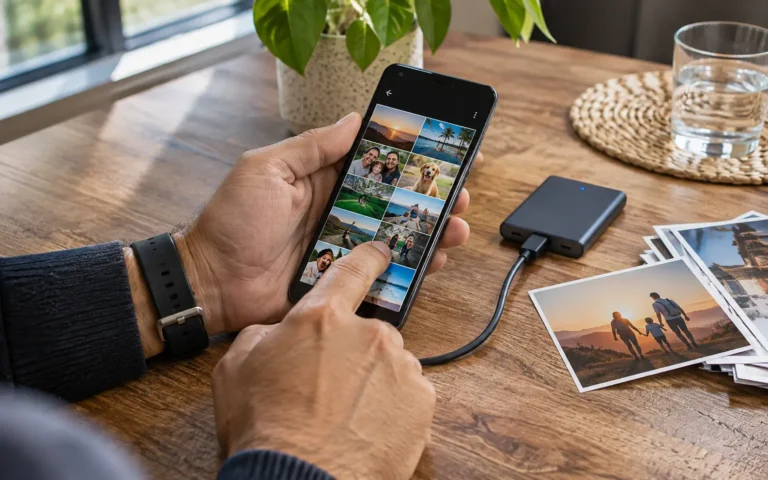
Accidentally deleting an important photograph from your Android phone can be frustrating, especially when it contains a family memory, travel experience, or personal document that cannot easily be replaced.
Fortunately, deleting a photograph does not always mean it is immediately lost forever.
Depending on your device, gallery application, cloud backup settings, and how recently the image was removed, you may still be able to restore it.
Learning how to recover deleted photos on Android can help you understand where missing images may be stored and which recovery options are genuinely available.
Samsung Galaxy users also have access to built-in recovery features through the Gallery and My Files applications.
However, not every deleted photograph can be recovered.
This guide explains the safest recovery methods, how to check Google Photos and Samsung Gallery, and what to do when an image is no longer available in the Trash.
Can You Recover Deleted Photos on Android?
Yes, in certain circumstances.
Many Android photo applications temporarily retain deleted images in a Trash or Recycle Bin folder.
These folders provide an opportunity to restore photographs before they are permanently removed.
Cloud backup services may also contain copies of images that are no longer stored locally on your smartphone.
However, recovery depends on several factors:
- Which application originally stored the photograph.
- Whether the image was moved to Trash.
- How long ago it was deleted.
- Whether a backup exists.
- Whether the file was permanently erased.
- Whether the correct cloud account is being used.
Google’s official documentation states that permanently deleted items cannot be restored through Google Photos.
For this reason, the safest approach is to check built-in recovery options and existing backups before installing additional software.
1. Recover Deleted Photos From Samsung Gallery
Samsung Galaxy smartphones include a Gallery application designed to organize photographs and videos.
On supported devices, deleted media is temporarily stored in the Recycle Bin.
According to Samsung’s support documentation updated in October 2026, deleted photographs and videos remain in the Gallery Recycle Bin for 30 days before permanent removal.
How to Restore Photos From Samsung Gallery
- Open the Gallery application.
- Tap Menu.
- Select Recycle Bin or Trash.
- Review the available deleted photographs.
- Tap Edit or select the photographs you want to restore.
- Tap Restore.
- Return to your Gallery and check whether the images have reappeared.
On some Samsung Galaxy models, the menu location and terminology may differ.
If you do not immediately see the Recycle Bin, check the Gallery menu or consult Samsung’s instructions for your device.
Important Warning
Once the Recycle Bin retention period has expired, Samsung may permanently remove the images.
Emptying the Recycle Bin manually can also permanently delete its contents.
Do not use the permanent deletion option when your intention is to recover photographs.
2. Restore Deleted Pictures Using Google Photos
Google Photos is widely used on Android smartphones to organize, back up, and manage photographs.
If an image was deleted through Google Photos, it may still be available in the application’s Trash folder.
How to Recover Photos From Google Photos
- Open Google Photos on your Android phone.
- Make sure you are signed in to the correct Google Account.
- Tap Collections.
- Select Trash.
- Find the photograph or video you want to recover.
- Touch and hold the item.
- Tap Restore.
- Check your Google Photos library for the restored image.
Google explains that restored photographs may return to their previous albums, Google Photos library, and supported device gallery locations.
How Long Does Google Photos Keep Deleted Images?
Google’s current Android recovery documentation describes a 30-day Trash retention period.
Some other official support materials still refer to different retention periods, particularly for previously backed-up items.
Because these instructions are not fully consistent, do not assume you have 60 days to restore an image.
Check the current information shown in your Google Photos account and recover important items immediately.
You can consult the official Google Photos recovery instructions.
3. Check Whether Your Photos Are in Another Google Account
Sometimes photographs appear to have disappeared because Google Photos is displaying a different account.
For example, you may have backed up your photographs using one email address but later switched to another Google Account.
In that situation, the images may still exist in the original account.
How to Check
- Open Google Photos.
- Tap your profile picture.
- Review the email address currently displayed.
- Check whether you have another Google Account containing backups.
- Switch to the correct account.
- Search your photo library again.
You can also access Google Photos through a web browser.
Sign in using the account associated with your previous backups.
Google recommends verifying the active account and backup settings when photographs appear to be missing.
4. Look for Photos in Archive or Other Device Folders
A photograph that no longer appears in the main gallery has not necessarily been deleted.
It may have been moved to an archive, another folder, or a location used by a different application.
Check Google Photos Archive
Open Google Photos and look for Archive under the available collections.
Archived photographs remain stored in your library but may not appear in the main photo view.
If you find the missing image, you can return it to the main library.
Check Device Folders
Some photographs may be stored in folders associated with messaging applications, downloads, screenshots, or editing tools.
Review available device folders within your gallery or file management application.
Also, try searching by approximate date or location when those details are available.
Google’s official guidance recommends checking backup settings, archives, and device folders before assuming that photographs have been permanently deleted.
5. Recover Deleted Photos Using Samsung My Files
Samsung Galaxy phones include the My Files application, which provides access to stored documents, images, videos, and other files.
On supported One UI versions, the My Files Recycle Bin can also help manage deleted files.
Samsung explains that One UI 6 introduced changes allowing users to review deleted items from supported applications through My Files.
How to Check My Files
- Open My Files on your Galaxy phone.
- Locate Recycle Bin.
- Review the deleted files displayed.
- Select an image you want to recover.
- Tap Restore.
- Check the appropriate folder for the restored file.
On some versions, you may also access related options through Device care storage management.
Remember that My Files cannot restore photographs that have already been permanently removed and are no longer available in a backup.
6. Check Your Cloud Backups
Cloud backups are among the most useful ways to preserve photographs.
Depending on your device and settings, photos may have been uploaded to Google Photos, Microsoft OneDrive, or another service.
Google Photos Backup
Open Google Photos and check whether backup was enabled before the image disappeared.
Verify that you are using the correct account.
You can also search the online library directly.
Microsoft OneDrive and Samsung Gallery
Some Samsung Galaxy devices support Gallery synchronization with Microsoft OneDrive.
If synchronization was enabled, check the associated Microsoft account and its photo folders.
Also, review the OneDrive Recycle Bin if the image was deleted from synchronized storage.
Synchronization is not necessarily the same as an independent backup.
Deleting an item from a synchronized location may also affect other connected devices or services.
Before restoring or moving files, understand how your particular synchronization arrangement works.
Other Backup Locations
If you previously copied photographs to a computer, external drive, or another cloud service, review those copies.
A backup does not need to be located on your phone to help restore a lost photograph.
7. Can You Recover Permanently Deleted Photos?
This is one of the most important questions for Android users.
If an image has been permanently removed from the Gallery Recycle Bin or Google Photos Trash, the standard restoration feature will no longer recover it.
Modern Android phones use storage encryption and other data management technologies that can make recovery from internal storage difficult or impossible.
Some third-party recovery applications advertise the ability to restore permanently deleted photographs.
However, their effectiveness varies significantly.
Certain tools may locate cached images, thumbnails, or files that were never fully deleted rather than restoring the original photograph.
Before Using Recovery Software
Consider these questions:
- Is the developer reputable?
- Does the software require unnecessary access to private files?
- Are recovery claims clearly explained?
- Does it demand payment before showing meaningful results?
- Could installing the application overwrite remaining data?
- Does the programme require rooting or modifying the device?
Avoid services promising guaranteed recovery of permanently deleted photographs.
If the images are particularly important, seek advice from a reputable data recovery professional before modifying the device further.
Even professional services cannot guarantee successful recovery.
Samsung Gallery vs. Google Photos: Recovery Options
The following comparison summarizes the main differences.
| Feature | Samsung Gallery | Google Photos |
|---|---|---|
| Main recovery feature | Recycle Bin | Trash |
| Standard recovery method | Select and restore | Select and restore |
| Documented retention | 30 days | Current Android help describes 30 days; other official materials differ |
| Cloud storage | Depends on connected services | Available when backup is configured |
| Correct account required | For connected cloud services | Yes |
| Permanently deleted items | Not recoverable through standard Recycle Bin | Not recoverable through standard Trash |
| Availability | Supported Samsung Galaxy devices | Supported Android devices and web |
Retention periods and interface details may change.
Always review the current official instructions for your device and application.
What Should You Do Immediately After Losing Photos?
If you have just discovered that important photographs are missing, avoid making unnecessary changes to your device.
Start with these steps:
Step 1: Check Samsung Gallery or your Android gallery application.
Step 2: Review its Trash or Recycle Bin.
Step 3: Open Google Photos and check Trash.
Step 4: Verify your Google Account and available backups.
Step 5: Check Samsung My Files and other device folders.
Step 6: Review cloud storage and computer backups.
Step 7: Avoid resetting the phone or installing unfamiliar recovery tools.
These steps prioritize existing copies and built-in recovery features.
A factory reset is not an appropriate first step for recovering deleted photographs.
It can permanently erase additional information.
Common Photo Recovery Mistakes to Avoid
Several mistakes can reduce the chance of recovering important images.
Emptying the Trash Too Soon
Permanently deleting Trash contents removes the ordinary restoration option.
Using the Wrong Google Account
Photographs may appear missing because they were backed up under another account.
Confusing Synchronization With Backup
A deletion may synchronize across connected devices.
An independent backup is generally safer than relying only on synchronized copies.
Installing Suspicious Recovery Applications
Unknown applications may request extensive file access or make unrealistic recovery promises.
Factory Resetting the Phone
A factory reset removes local information and does not automatically restore deleted images.
Assuming All Photos Were Backed Up
A cloud application being installed does not mean backup was enabled or successfully completed.
Always verify the actual files.
How to Prevent Losing Android Photos Again
Preventing data loss is often more reliable than attempting recovery afterward.
Consider enabling an appropriate photo backup service and reviewing its status regularly.
For particularly important images, maintain more than one independent copy.
A Practical Photo Backup Routine
| Frequency | Suggested action |
|---|---|
| After important events | Confirm photographs are safely copied |
| Weekly | Check cloud backup status |
| Monthly | Review available storage and backup capacity |
| Every few months | Copy important photos to another secure location |
| Before changing phones | Verify that important media can be accessed elsewhere |
This schedule is an illustrative recommendation, not a requirement from Samsung or Google.
Also, remember that cloud storage services may have capacity limits, subscription fees, and account inactivity policies.
Keep your account recovery information current and use strong authentication.
Important Considerations
Photo recovery options vary by Android manufacturer, software version, application, and backup configuration.
Samsung Gallery and Google Photos are separate services with different recovery interfaces.
A file deleted from one service may not be available through another.
Additionally, cloud synchronization can affect whether deletions are reflected across connected devices.
Do not assume that photographs stored in a cloud account are protected from every type of deletion.
Before changing synchronization settings, permanently deleting files, or resetting a device, confirm that important photographs exist in a separate accessible backup.
If sensitive personal photographs are involved, avoid uploading them to unknown recovery websites or providing account credentials to unverified services.
Frequently Asked Questions (FAQ)
Can I recover deleted photos from a Samsung Galaxy phone?
Yes, if the photographs remain in Samsung Gallery’s Recycle Bin or exist in an accessible backup.
How do I restore photos from Samsung Gallery?
Open Gallery, select Menu, access Recycle Bin, choose the photographs, and tap Restore.
Can I recover deleted pictures from Google Photos?
You can restore eligible photographs that remain in the Google Photos Trash folder. Permanently deleted items cannot be restored using its standard recovery feature.
Can I recover photos deleted more than 30 days ago?
Possibly, if another backup or independent copy exists. Standard Trash recovery depends on the applicable retention policy and whether the item is still available.
Why are my Google Photos pictures missing?
You may be using a different Google Account, viewing another folder, or experiencing a backup-related issue. Check your account, Archive, Trash, and backup status.
Can I recover deleted photos without a backup?
Only in limited circumstances, such as when the files remain in a device’s Trash folder. Permanently deleted files without another copy may be unrecoverable.
Are Android photo recovery apps safe?
Safety varies. Investigate developers, requested permissions, privacy policies, and recovery claims before installing unfamiliar software.
Does Samsung Cloud store my photographs?
Photo storage arrangements depend on the device, region, and connected services. Some Galaxy devices support Gallery synchronization through Microsoft OneDrive.
Can a factory reset restore deleted photos?
No. A factory reset generally erases local user information rather than recovering deleted files.
Final Thoughts
Losing important photographs can be stressful, but some deleted images may still be available through Android’s built-in recovery features.
Samsung Galaxy users should begin with the Gallery Recycle Bin and My Files.
Google Photos users can check Trash, verify their account, and review existing cloud backups.
If an image has already been permanently deleted and no independent copy exists, recovery may not be possible.
The safest approach is to use official recovery features, avoid suspicious software, and maintain verified backups.
Protecting your photographs before they disappear is far more reliable than depending on recovery tools afterward.
Disclaimer
This article is provided for general educational and informational purposes only. It does not constitute professional data recovery, digital forensics, or cybersecurity advice.
Recovery options, retention periods, application interfaces, and backup features vary depending on device model, operating system, region, and service configuration.
Neither Samsung nor Google guarantees restoration of permanently deleted files.
Third-party recovery software may introduce privacy risks and cannot guarantee results.
This website is an independent educational publication and is not affiliated with or endorsed by Samsung, Google, Android, or Microsoft.
Editorial review date: November 14, 2026.